I acknowledge that the title of this post is presumptuous. This is actually one way to host a funeral on Zoom. But it worked well enough that I feel good about recommending it.
When my father died several weeks into the shutdown prompted by the Covid-19 pandemic, my mother at first planned to defer any memorial until after the crisis was over, but within a couple of days she decided she wasn’t comfortable with that and spoke to the minister at her church about doing a funeral via Zoom. While the minister had hosted Zoom meetings and had officiated at many funerals, she had never done a funeral via Zoom, but she was game. I spent the next several days digging into the Zoom help files figuring out how best to use it for this kind of event.
It went well, but I’m glad I spent that time researching because it would not have gone nearly as well if I hadn’t. And even so, there were things I would do differently if I had it to do again. Thus I thought I’d capture what worked and what didn’t work for anyone else who might decide to host a funeral via Zoom.
The first part of the session — about 35 minutes, as it turned out — was to be a traditional Episcopal funeral service. During that portion three people would do readings from the Bible and three others would be given the opportunity to make remarks about my father. Everyone else would be an observer. But my sister suggested that after the formal service was over we open up the session for remarks from other people.
Given those parameters I decided that the best way to handle the funeral was to conduct it as a Zoom webinar rather than a standard Zoom meeting. In a Zoom webinar, the host can distinguish between those who will have speaking roles and those who will not. Zoom calls the former “panelists,” and the latter “attendees.” But at any time the host can unmute an attendee (attendees cannot unmute themselves), and the host can also “promote” an attendee to a panelist, thereby enabling that person to be seen as well as heard.
The webinar add-in also provides a Raise Hand button that allows participants to ask the host to call on them.
So here was the plan: Everyone with a speaking role in the service — the minister, the three people doing readings, and the three people making remarks — would join the session as “panelists” while everyone else would join as an “attendee.” This meant that only those with a speaking role would be seen by everyone else, at least until after the formal service was over.
I knew that some people would log into the Zoom session early, so I specified in my email that people should join no earlier than 15 minutes ahead of time. Then I initiated the meeting well before that.
I created a slide show in PowerPoint of photos of my father throughout his life. The photos appeared against a black background and there was a message at the bottom of each slide saying when the service would begin.
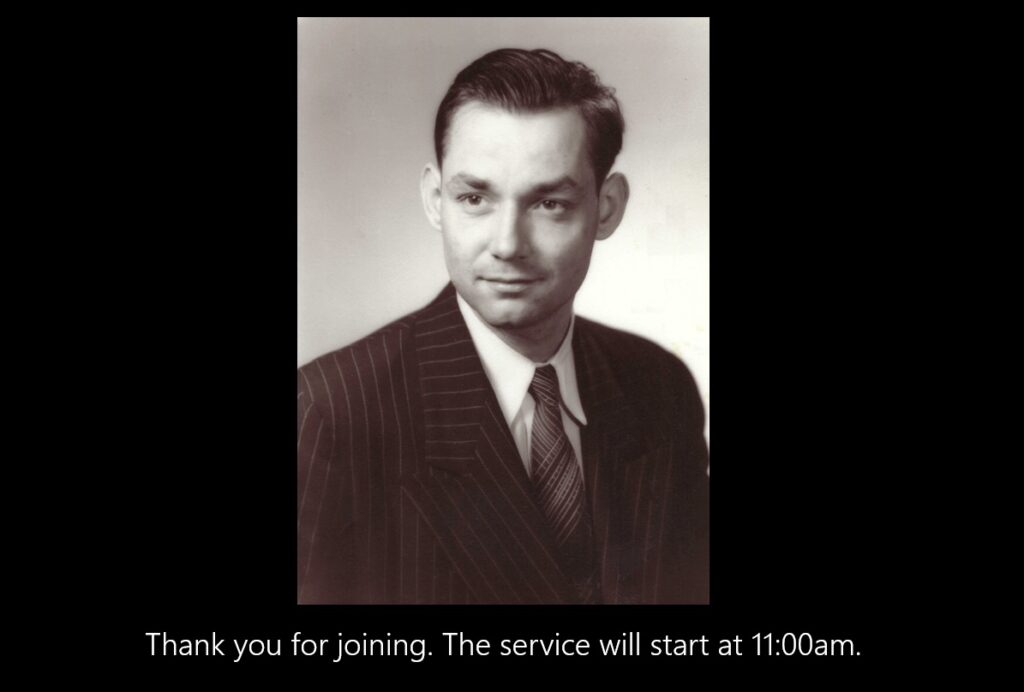
I wanted the slide show to play on a continuous loop between the time people logged in and the time the service started. PowerPoint allowed me to do that. To share the slide show I used a second computer and designated it as a panelist. (I had to use a second email address for that computer because Zoom wouldn’t let me designate myself as a panelist when it knew I was the host.) I found some funeral organ music on YouTube to accompany the slide show. Once I’d initiated the meeting as the host from my primary computer, I joined the meeting from that second computer and selected Share Screen and Share Computer Sound in Zoom. (I discovered that doing that caused the slide show to pause so I had to restart it once I’d gotten connected.) Make sure you mute the audio on that second computer so that attendees hear only the music and not extraneous room noises.
At the designated start time I dropped the computer playing the slide show from the meeting, turned on my own video, welcomed everyone and explained how everything was going to go, including the fact that there would be an opportunity after the formal service for people to make additional remarks. I then introduced the minister and she took it from there for the next half hour. I made sure each of the people who had speaking roles were un-muted before they were scheduled to speak and then re-muted when they were finished.
When the formal service ended I explained that anyone who wanted to sign off was free to do so, but that they were welcome to stay while I invited people to make additional remarks. As far as I could tell, everyone stayed. I said that anyone who wanted to make remarks should click the Raise Hand button and that I would enable the video and audio of each person, one by one, so they could say what they wanted to say.
Of the 70 individuals and families who attended, something like 20 people took the opportunity to make remarks. That portion of the session lasted about as long as the formal service had. It was also really gratifying. At a conventional in-person funeral, some of those people might have made the same remarks but they would have been made to only one or a few members of the family. But in the Zoom funeral, everyone could hear what everyone else said. It was really uplifting for everyone involved.
Now here are some particulars that anyone hosting a funeral this way should know:
- A free Zoom account limits sessions of three or more people to no more than 40 minutes, so you’ll need to pay $14.99 for a one-month Zoom license. The webinar add-in is extra. If you won’t have more than 100 attendees you can pay $40 for a one-month webinar license. If you may have more than 100 people attending you’ll need to pay $140 for up to 500 attendees, or more for higher numbers. Prior to the session you’ll go into the meeting settings and enter the names and email addresses of the “panelists.” The system will then send each of them an email with a link exclusively for their use. Make sure they know to use that link and not the one in the email you sent to other attendees.
- For those with speaking roles in the service, other than the minister, I chose to leave their video off until it was time for them to speak. That was a mistake. Whereas the host can unmute another person, he or she can’t actually turn on someone else’s video. All the host can do is pop up a message on that other person’s screen asking them to turn on their own video. If the other person doesn’t see that message or isn’t sure what to do about it, their video stays off. For that reason, the first two people to do readings at my father’s funeral could be heard but not seen. What people saw was a black box with the person’s name in it. So I recommend that you ensure that each of the people with speaking roles join the meeting with their video turned on and that you leave it on throughout the service.
- During the second part of the session, as each person is making their remarks, choose the next person you’re going to call on, promote them to panelist, and prompt them to turn on their video. If you wait to do all that until you’re ready to call on them, there will be unnecessary delays between speakers. You can wait to unmute them until you’re ready to call on them.
- As you call on each person, let them know that you can see them and hear them so they don’t need to wonder.
- Mute each person after they’ve spoken, since you can’t be certain that they or someone with them won’t make extraneous remarks that pull the video back to them, interrupting a subsequent speaker. You can leave their video on — it’s nice to see the screen gradually fill up with people who have made their remarks — but turn their microphone off. After everyone has made their remarks, you can unmute everyone who’s spoken so they can all say goodbye to each other.
- Unlike the attendees, webinar panelists do not have a “Raise Hand” button, so if you want to give the people who did readings during the service a chance to make remarks at the end, you’ll need to ask them to tell you verbally that they want to speak.
- When you set up the meeting, it’s important to carefully choose which settings to enable. For example, don’t enable the Waiting Room, since you’ll have to constantly check the attendee list to admit new people into the meeting, and you won’t have time for that.
I recommend scheduling a practice session with some friends or relatives in advance of the funeral so that you can practice everything you’re going to do as host, and find out from participants what they are seeing and hearing. One thing I discovered during my practice session was that, unlike with a regular Zoom meeting, webinar attendees cannot choose between the Speaker View and the Gallery View. That’s controlled by the host. When scheduling the webinar you can specify that attendees will see the Speaker, the Gallery, or whichever of those the host is using. I recommend that last option since you’ll probably want everyone to see the Speaker view during most of the session but may want to switch to the Gallery view toward the end after everyone has spoken and people are saying goodbye.
I also recommend doing a test session with each of the people who have speaking roles in the service, including the minister, to make sure everything works and that they know what they’re doing.
It’s important to remember that some of the people attending the funeral will never have used Zoom. In my email invitation I suggested that anyone in this category ask a friend who was a Zoom user to invite them to a test meeting ahead of time so that they could practice the steps for joining a meeting and work out any kinks beforehand. I knew I would not have time to take computer support calls during the session.
I sincerely hope you do not have occasion to schedule a funeral during the current pandemic, but if you do, I this is helpful. If you have any questions or additional suggestions, please feel free to add a comment below.